Paralives Moving Guide: How to Buy New Lots, Move House & Split Households
June 9, 2026
Moving in Paralives doesn’t have to be stressful — whether you’re upgrading to a bigger home, downsizing, or helping your teen move out on their own, the game’s household management system makes it easy. This guide covers everything you need to know about buying new properties, relocating your entire family, and splitting households .
Quick Start Overview
- Buying a New Lot: Zoom out to town view → Find blue “For Sale” icons → Purchase → Confirm
- Full Family Move: Sell old lot→Buy new lot
- Partial Move (Split Household): Split → Select members to move → Transfer funds → Confirm → Buy new lot
- Primary Residence Rule: Your household has one “primary residence” — this is where Paras sleep, eat, and return to when you click “Go Home”
- Multiple Lot Ownership: You can buy as many lots as you want, but Paras won’t automatically move to new ones; they’ll keep using the original primary residence
- Switching Primary Residence: The only way to make Paras move to a new house is to sell their old primary residence
Part 1: How to Buy a New Lot or House
Step 1: Access Town View
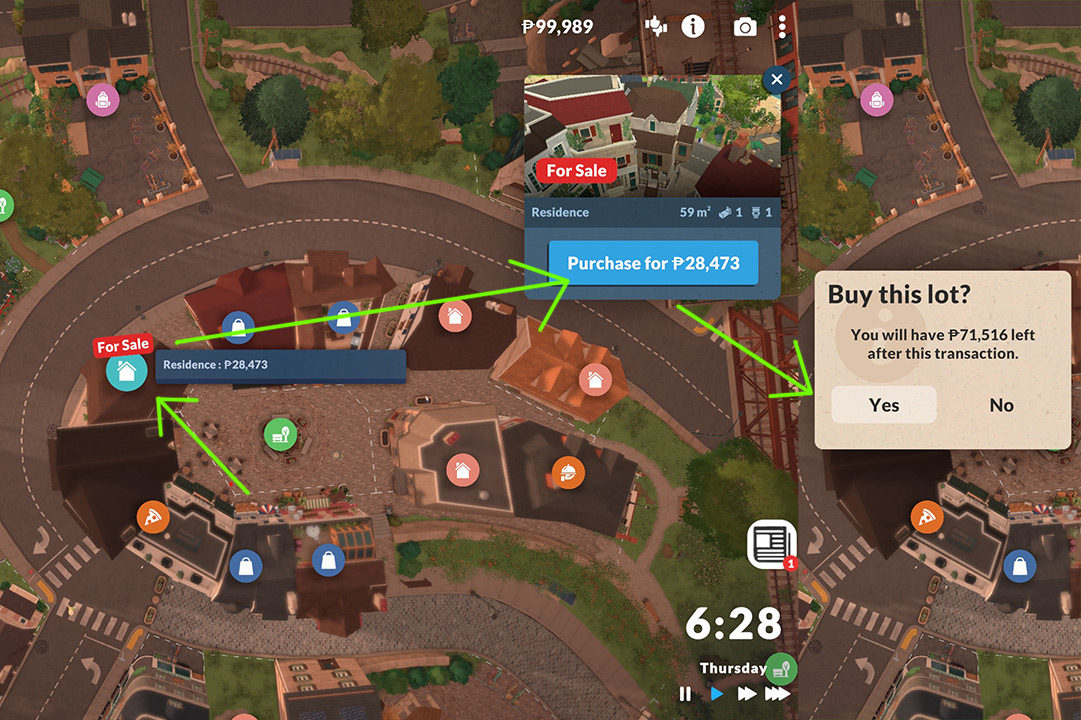
Zoom out completely using your mouse scroll wheel or press M to open the world map . You’ll know you’re in the right view when you see colored house icons above each property:
- Blue icons: Available for sale (marked “For Sale”)
- Orange icons: Occupied by other households
- Green icon: Your active household
Step 2: Browse Available Properties
Click any blue “For Sale” icon to see:
- Lot price (in Paradimes, the in-game currency)
- Lot size
- Number of bedrooms and bathrooms (for pre-built homes)
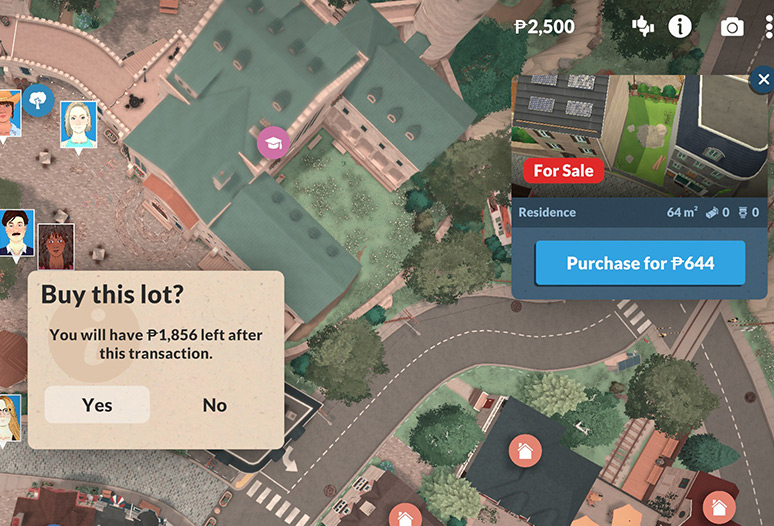
Step 3: Purchase the Lot
- Click the Purchase button in the upper right corner of the property info panel
- Confirm your purchase in the pop-up window (it will show your remaining Paradimes)
- The lot is now yours! It will change from blue to green (active household) Pro Tip: You don’t need to sell your old lot first — Paralives lets you own multiple properties ! This is great for vacation homes or investment properties.
Part 2: Moving Your Entire Household
- In town view, click your green household icon
- Select Sell Lot from the right-hand menu
- Confirm the sale — your household funds will increase by the lot’s value
- Follow Part 1 to buy a new lot
Part 3: Splitting Households (Moving Out Individual Members)
This is perfect for:
- Teens moving out for college
- Siblings starting their own families
- Roommates going their separate ways
Step-by-Step Household Splitting
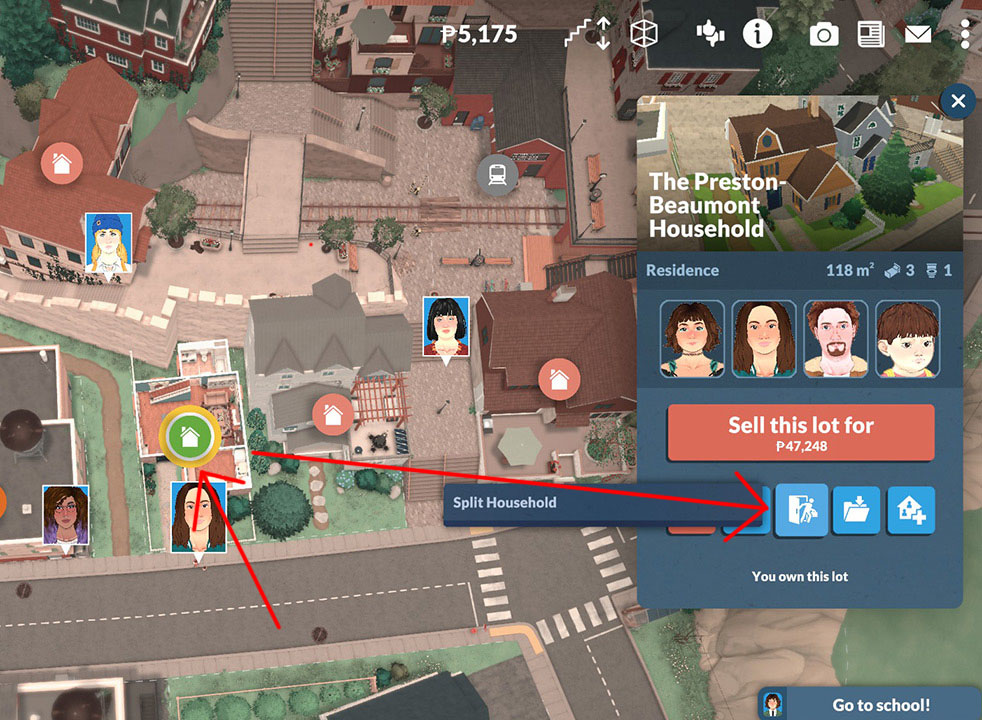
- In town view, click your original household’s green icon
- Select Split Household from the right-hand menu
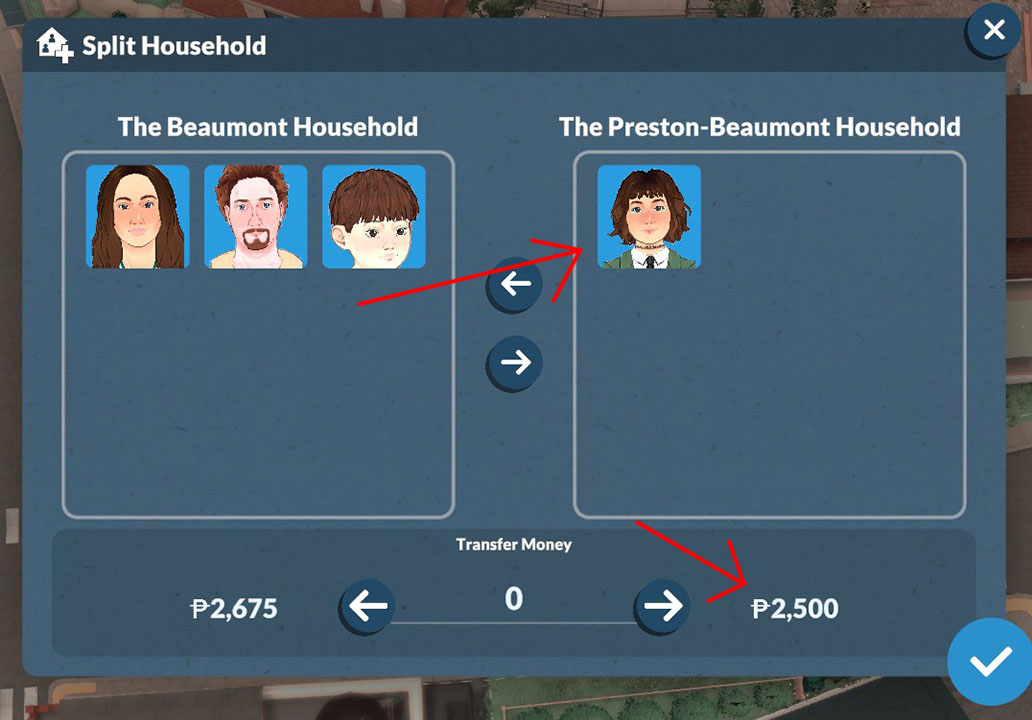
3.The split menu will appear with two columns:
- Left: Current household members
- Right: New household members (empty initially)
4.Select members to move:
- Click a Para’s icon and use the arrow buttons to move them to the right column
- You can move multiple members at once (e.g., a teen and their pet)
5.Transfer funds:
- Type an amount in the “Transfer Money” box
- Click the arrow to send that money to the new household
- Zero is allowed if you want them to start with nothing
6.Important Check: Ensure the new household has at least one teen or older Para — you can’t move only babies/toddlers/children— Click Confirm
7.Buy a new lot for the moving members (follow Part 1)
Part 4: What Happens to Your Stuff?
Furniture & Belongings
-
When you sell a lot, all furniture stays on the property
-
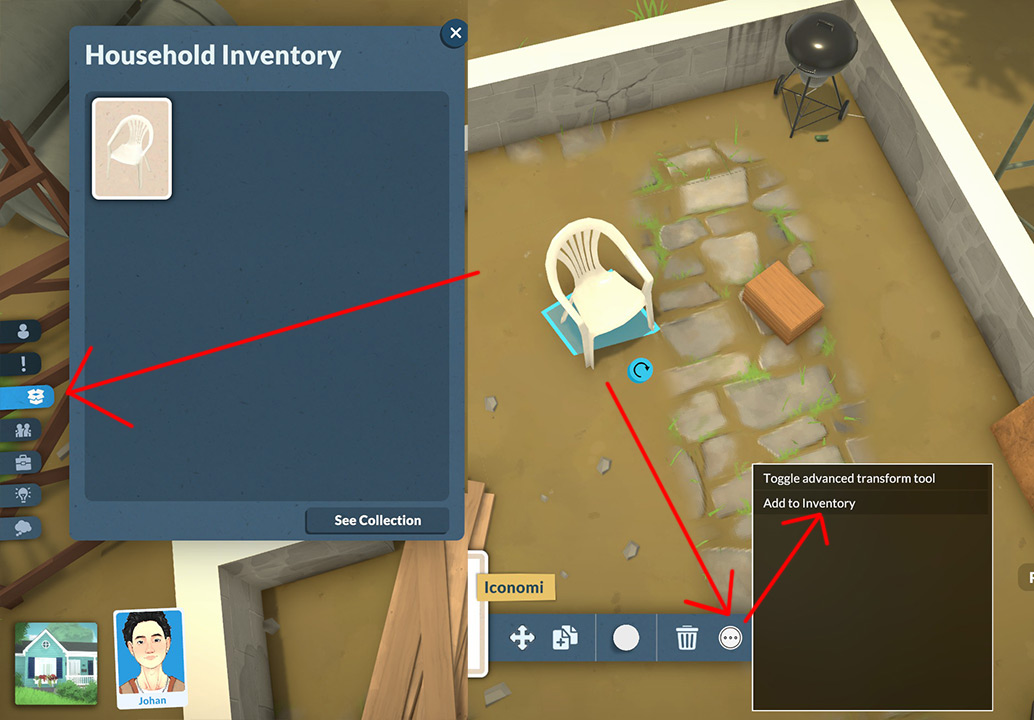
If you want to keep items, move them to inventory before selling:
- Enter Build Mode
- Select items and click “Add to Inventory” (box icon)
- After moving, place them in your new home from inventory
Household Funds
- Selling a lot adds its value to your household funds
- When splitting, you control how much money transfers to the new household
Part 5: Pro Tips for Stress-Free Moves
- Plan your budget: New lots can be expensive! Save up extra Paradimes for moving costs and new furniture
- Test the commute: Check how far your new home is from work/school before buying
- Save custom builds: Use the “Save to Gallery” feature to preserve your favorite rooms/houses for future moves
- Empty nests: After kids move out, sell their old bedroom furniture to free up space and cash
Final Notes
Moving in Paralives is designed to be flexible — you’re not locked into one home forever. Whether you’re creating a sprawling family estate or helping a young Para start their independent life, the game’s intuitive household system has you covered.