How to Move Buildings Vertically in Paralives – Raise, Lower & Adjust Height
June 3, 2026
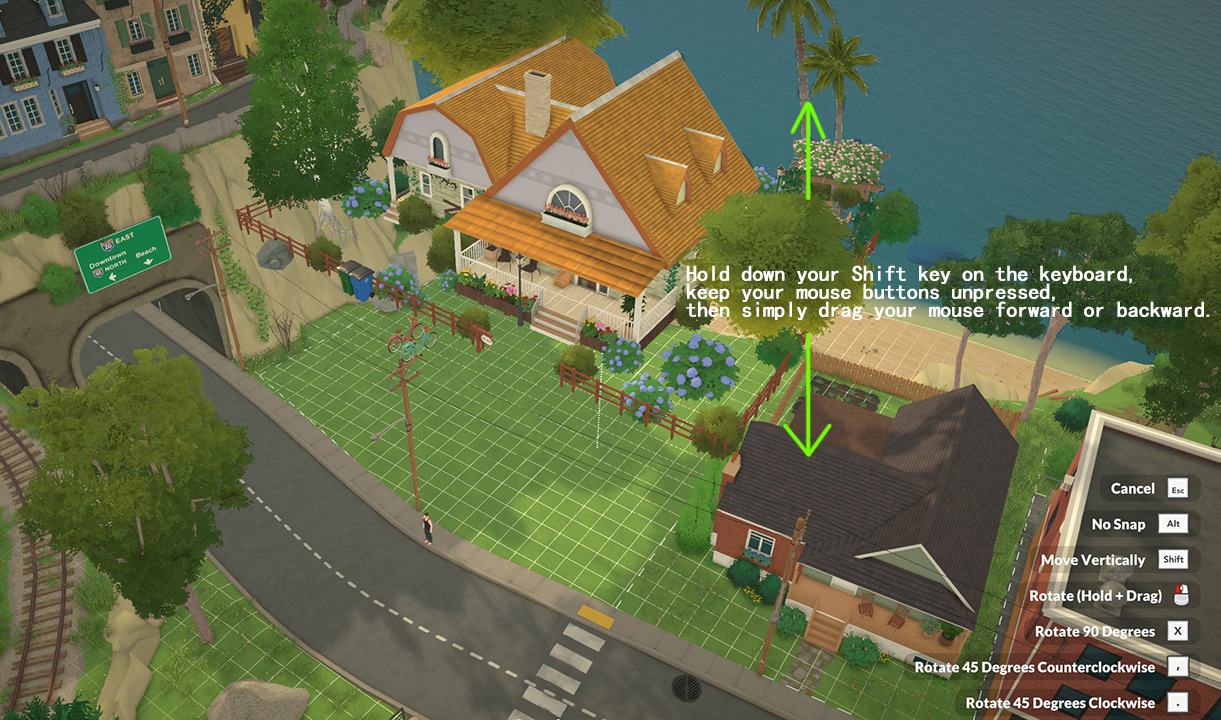
Many players struggle with vertically shifting pre-built structures in Paralives. Follow this step-by-step guide to place buildings up or down freely on your lot.
Full Step-by-Step Guide
Step 1: Load Saved Builds from Steam Workshop
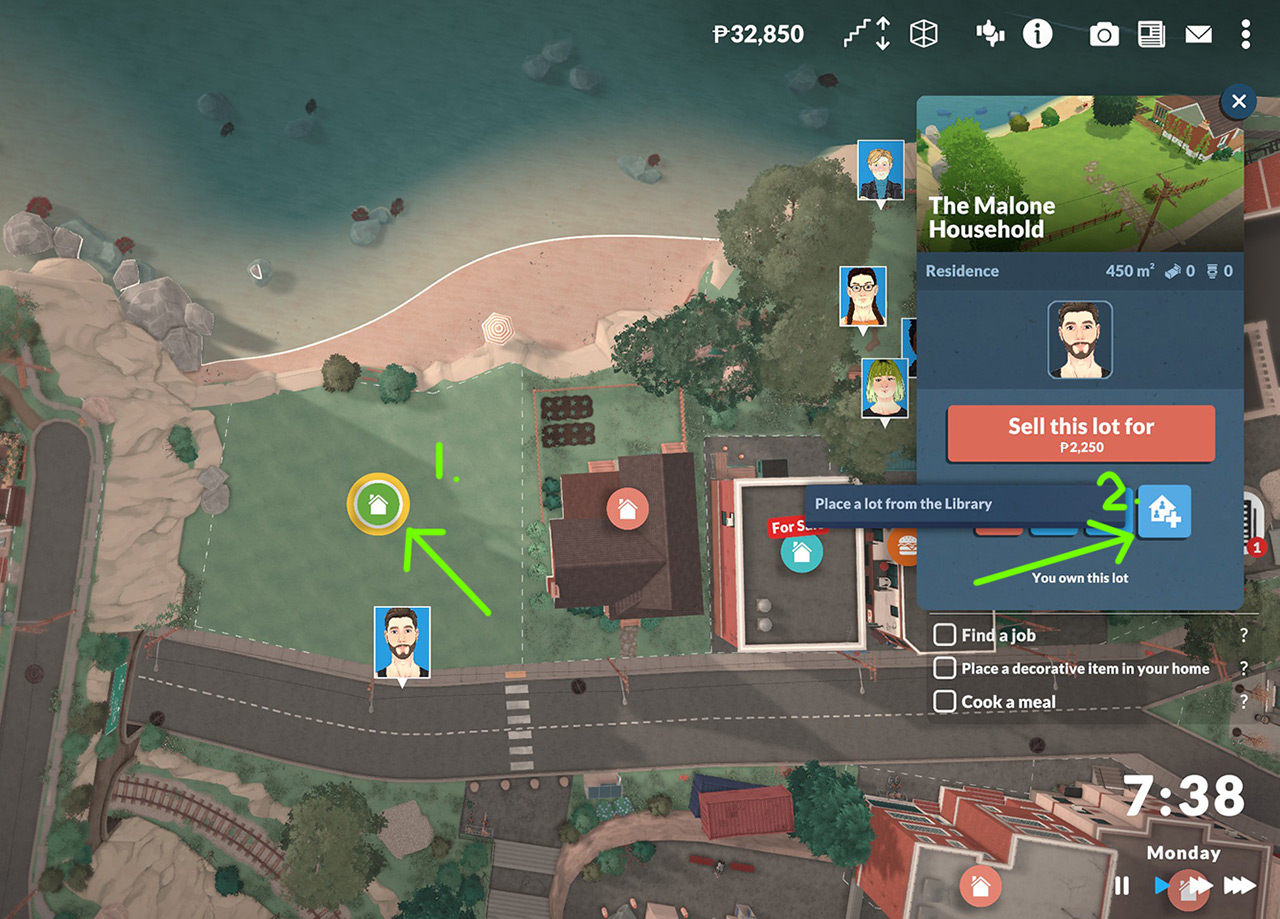
- Press the M key to open the world map view.
- Select the lot you own and click the yellow-green house icon.
- Pick the far-right option: Place Lot from Library.
- Locate and select any pre-made building you’ve subscribed to via the Steam Workshop.
Step 2: Vertical Placement Controls
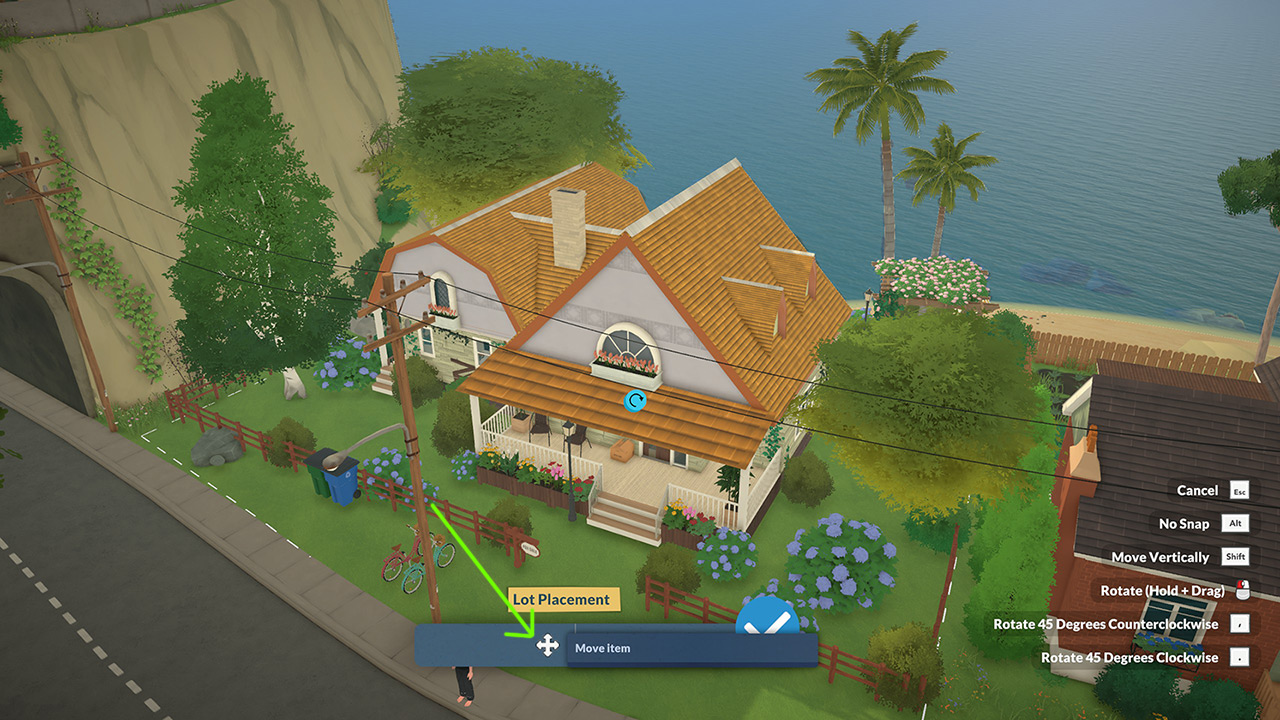
- After spawning the building, click the cross-shaped move arrow icon to activate edit mode.
- Hold down your Shift key on the keyboard, keep your mouse buttons unpressed, then simply drag your mouse forward or backward. Your building will shift vertically up or down in real time.
- Left-click once to lock the building into your preferred vertical height.
Step 3: Fine-Tune Height & Rotation
- Reclick the cross arrow icon anytime to readjust vertical positioning.
- Hold your left mouse button while dragging to rotate the building to your desired angle, then left-click again to confirm placement.
Step 4: Finalize Placement
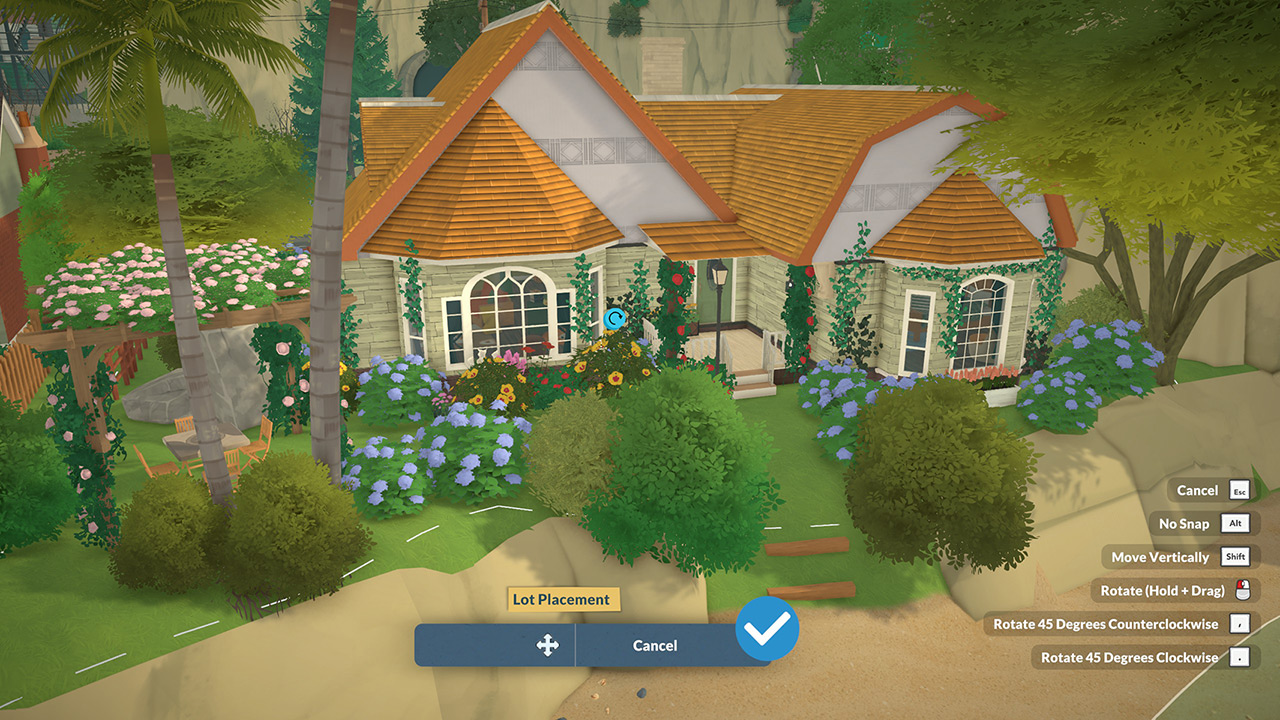
Once all height, position and rotation edits are finished, click the checkmark icon to complete setup and lock the building permanently onto your lot.
Important Notes
Note: Buildings place correctly on the same lot, but positioning glitches occur when placing across separate lots.